In this article

Simplest Way to Add Product Filters to Shopify: Step-By-Step Guide (+Images)

Boost sales and improve user experience by learning how to add product filters to Shopify—help customers find exactly what they want in seconds.

Ali Shah - Writer for Fast Simon
By Ali Shah
Danell Theron Photo
Edited by Danéll Theron
Oli Kashti - Writer and Fact-Checker for Fast Simon
Fact-check by Oli Kashti

Updated December 4, 2025

According to a Forbes study, 61% of shoppers leave a site within seconds if they can’t find what they need—which is exactly why your store needs clear, helpful filters. Good filtering doesn’t just tidy up your collections—it guides your customers straight to the sizes, colors, styles, or price ranges that matter to them. When you add product filters to Shopify, you make it easier for people to move from browsing to buying, without unnecessary friction.

This creates a smoother shopping experience and keeps customers from abandoning your store out of frustration. It’s also one of the simplest ways to improve site search and reduce the time it takes for customers to make a decision. In this guide, you’ll learn exactly how to set up your filters, choose the right types, and customize them for different collections so they work for your store—not just in theory, but in practice.

» Add product filters seamlessly with our customized search solutions


What Is a Product Filter?

Product filters are a merchandising tactic that allows your customers to narrow down a wide array of products and find the ones they're looking for quickly and efficiently.

This extremely beneficial Shopify navigation and tag tool is one of the best practices for site search as it streamlines your customers' shopping experience—by simply clicking a few buttons to enable the right filters such as vendor, color, or size, they can easily sort through your Shopify products to find the right ones for them.

» See these other eCommerce merchandising trends

For example, if a customer wants to buy a specific type of shoe from the Nike website, they can select the "high top" and "men" filters, and the search results will be narrowed down to just the options that meet the specific price criteria.

a pair of sneakers on a website page

» Product filters not enough? See these other ways to optimize internal site search


Why You Should Add Product Filters to Shopify

Product filtering is a crucial part of any eCommerce store. It helps customers find exactly what they’re looking for faster while improving the overall shopping experience. Well-implemented filters also make your store look organized and professional. Here’s why adding product filters to Shopify matters:

  • Improves customer navigation: Shoppers can quickly narrow options by size, color, price, type, or other attributes, reducing frustration and time spent searching.
  • Enhances search experience: When combined with search, filters let customers refine results efficiently, helping them find relevant products faster.
  • Boosts conversion rates: Easier product discovery encourages purchases and reduces abandoned carts.
  • Organizes your store: Filters help maintain a clean, structured layout, especially for stores with large inventories.
  • Supports custom attributes: Advanced filters using tags or metafields highlight unique product features, helping customers discover products they might not have found otherwise.
  • Increases user satisfaction: A well-filtered store feels intuitive and professional, encouraging repeat visits and trust.

» Make sure your filters are the best: Here's how to optimize eCommerce filters and avoid common mistakes


Custom Filters vs. Basic Filters

Before you decide which filter setup works best for your store, it helps to understand how Shopify’s built-in filters compare to custom filters created with tags or metafields. The breakdown below shows how each option differs in complexity, flexibility, maintenance, and overall capabilities.

Factor

Custom Filters (Tags / Metafields)

Basic Filters (Native Shopify)

Setup Complexity

Medium–High — requires organized tags/metafields; may need theme edits

Low — enabled through Search & Discovery app

Flexibility

Very high — you can create any attribute

Moderate — limited to Shopify’s built-in fields

Theme Compatibility

Depends on theme; may need Liquid edits

Fully supported on OS 2.0 themes

Performance Impact

Low–Moderate depending on number of custom fields

Very low — fully optimized by Shopify

Best For

Stores with unique attributes, niche industries, detailed product taxonomies

Standard catalogs with simple filtering needs

Limitations

Requires discipline and structure; advanced logic may need a developer

Cannot create niche or custom attributes; limited flexibility

» Learn about the best tools and strategies in our guide to eCommerce product search engines


How to Add the Filters to Your Shopify Store

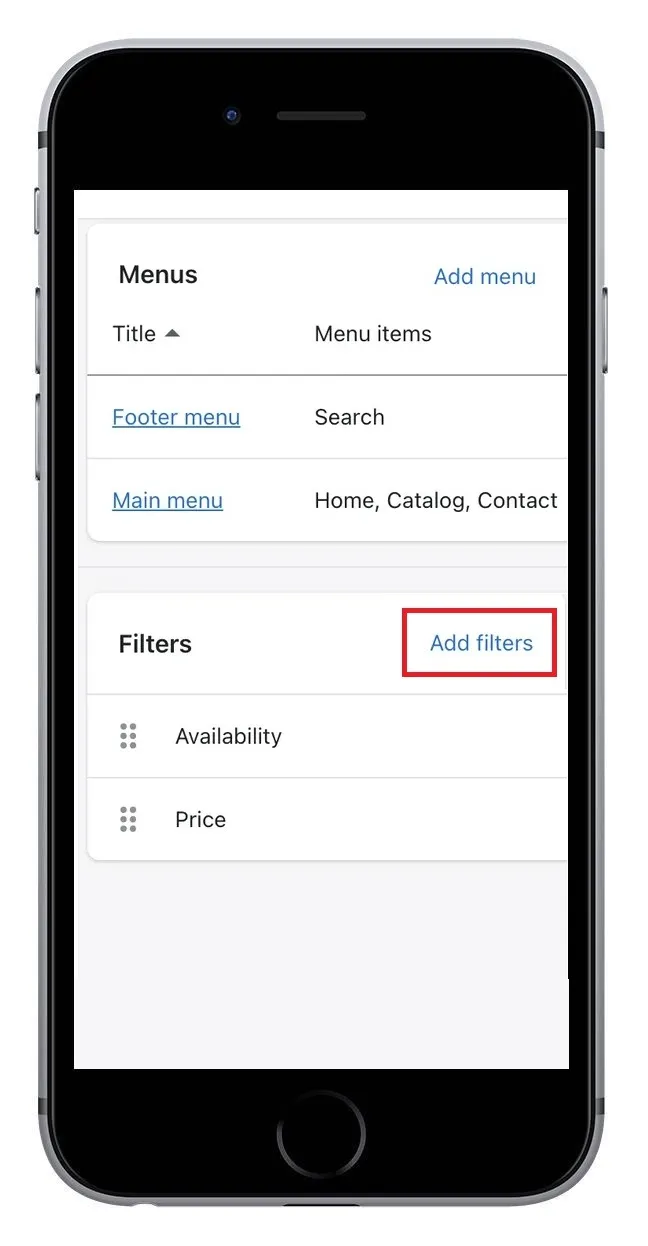
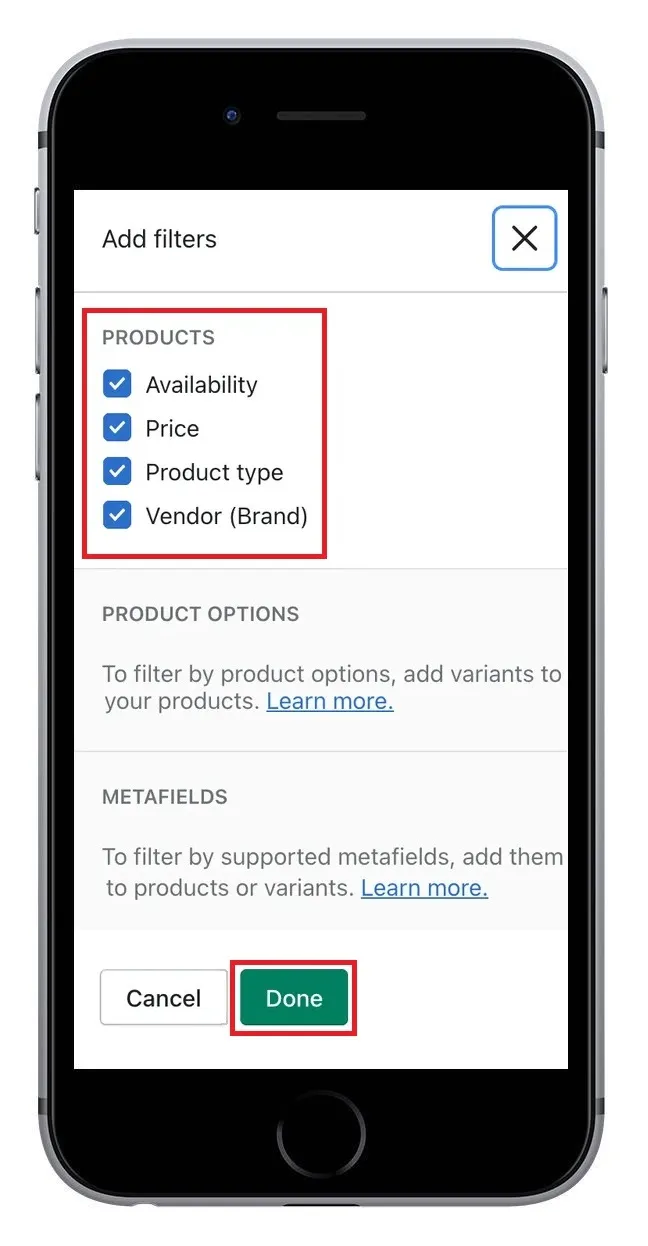
There are two different processes for adding product filters to a Shopify store: one for desktop and the other for mobile. You can also add two types of filters:

  1. Basic or default filters include options like primary price, vendor, and product type. These filters work with any store and you can add up to five.
  2. Advanced or custom filters depend on the type of products you sell, so you'll use your product variants (such as size for shoe brands) to determine which custom filters you need. You can add up to 20 of these filters to your store using Shopify's metafield definitions.

» Need more search options? Consider visual search and voice search

Now, before you start, Shopify does have a few boundaries. You get 25 filters total.

It doesn't matter if they are basic ones like price and vendor or advanced ones like custom metafields; 25 is your hard cap. Honestly, if you’re using more than 10, you’re probably going to overwhelm your customers.

Tip: If a collection has more than 5,000 products, your filters will simply stop showing up. It’s a weird Shopify quirk that catches people off guard. If you’re running a massive catalog, you’ll likely need a dedicated third-party app to bypass that limit.

» Improve filters even more with Shopify search collections

How to Get Your Filters Live (Desktop or Mobile)

Whether you're sitting at your desk or checking your store from your phone at a cafe, the process is the same. Shopify's admin is responsive now, so the steps don't change.

Step 1: Install the Search & Discovery app (if you haven't already): Go to the Shopify App Store and search for Shopify Search & Discovery and Install. It's free and built by Shopify.

a screen shot of shopify search and discovery

Step 2: Once installed, go to Apps > Search & Discovery in your Shopify Admin.

a screenshot of a menu page with the menu tab highlighted

The Filter Section: Click on Filters tab in the sidebar.

a screen shot of a cell phone with the search and discovery button highlighted

Step 3: Picking Your Filters: Hit Add filter. You'll be taken to a page with a Select source dropdown at the top - when clicked.

a screenshot of a web page with a description of a file

Step 4: Choose Your Source: Click Select source, and a modal will pop up showing all available filter options organized by type:

  1. Standard filters: Brand, Category, Product type, and "More filters" (which includes Price, Availability, Product Status, Product Vendor)
  2. Product options: Any variant options you've set up (like Size, Color, Material)
  3. Category metafields and Product/Variant metafields: Any custom metafield definitions you've created

You can use the search bar at the top of this modal to quickly find a specific filter.

Pro tip: If you want to filter by something unique, like "Battery Life" or "Sustainability Rating", you'll need to set those up as Metafield definitions first, then they'll appear in this popup modal.

a screenshot of a form with the add filter button highlighted
a screenshot of a web page with the search box highlighted

Step 5: Customize the Filter Label: In the Filter label field, edit what customers will see on your storefront. Make it clear and customer-friendly (example, change "More filters" to "Occasion" or "Event Type").

a screenshot of the add filter button

Step 6: Set the Logic (optional): Choose how the filter behaves when customers select multiple values:

  1. OR condition: Shows products that match at least one selection (default for most filters)
  2. AND condition: Shows only products that match all selections

a screen shot of a webpage with a red box

Step 7: Review and Manage Values: The Values section shows all available options for your filter. You can:

  1. Search for specific values using the search bar
  2. Sort values automatically or manually using the "Sort" dropdown
  3. Group related values together (e.g., group "birthday," "birthday-cake," and "birthday-party" under a single "Birthday" option)
  4. Check or uncheck values to control which ones appear to customers

a screenshot of a screenshot of a search box
a screenshot of a screen shot of the search results page

Step 8: Save This Filter: Click Save at the bottom of the page.

Step 9: Order Matters: Back on the main Filters page, you can drag and drop your filters to reorder them. Always put the most important ones (usually Price or your most-used category) at the very top.

Step 10: Check Your Live Site: Visit your storefront and navigate to a collection page to make sure your filters appear and work correctly.

» Struggling with search? Here's our guide to the Shopify search bar


6 Common Filter Configuration Issues

If you're trying to figure out how to edit filters in Shopify, these quick troubleshooting points break down the most common issues into clear “challenge vs. solution” steps so you can fix problems without digging through menus or guessing what went wrong.

1. Filters Not Appearing

  • The challenge: Filters don’t show on the storefront because Shopify only displays filters when the products in that collection contain the required data (like variant options, product types, or consistent tags). If that data is missing or inconsistent, the filter simply won’t load.
  • The solution: Check whether your products actually share the attributes you expect to filter by. Make sure product types are assigned, variants are correctly set up, and tags use consistent spelling across all items in the collection.

» Learn about the benefits of smart filters in eCommerce

2. Filter Values Not Updating

  • The challenge: You update product information — like adding new colors, renaming tags, or adjusting variant options — but the collection filters still show old values or don’t display the new ones.
  • The solution: Save each product after making changes and give Shopify time to re-index the new data. If values still don’t update, re-save the entire collection to force a refresh.

3. Theme Conflicts

  • The challenge: Filters load in the admin but appear broken, incomplete, or invisible on your storefront because the theme has custom code that overrides Shopify’s default filter layout.
  • The solution: Temporarily preview using a standard 2.0 theme (like Dawn or Studio). If filters appear correctly there, your current theme needs code adjustments—usually in the collection or faceted-search templates.

4. Collection-Specific Changes Not Showing

  • The challenge: You edit or reorganize one collection expecting its filters to change, but nothing updates because Shopify pulls filter values from all products included in that collection.
  • The solution: Review the products assigned to the collection and ensure they all contain the attributes you expect customers to filter by; otherwise irrelevant or missing filter values will appear.

5. Duplicate or Irrelevant Filter Options

  • The challenge: Filters show two versions of the same thing (“Blue” vs. “blue”) or surface options that look random or outdated.
  • The solution: Standardize your product data. Align tag spelling, clean up old variants, rename inconsistent options, and delete outdated values so Shopify only reads one unified version.

» Find out how to effectively display product variants on your eCommerce store

6. Missing Price or Availability Filters

  • The challenge: Price or stock-status filters don’t show up even though your store has products with different ranges and stock levels.
  • The solution: Make sure you're using a fully compatible Online Store 2.0 theme, because older themes don’t support modern filter components. Updating or switching themes restores these core filter types.

» Be sure not to make these eCommerce search mistakes

the fast simon logo on a white background

Optimize Your eCommerce Filters

Smart, automated filter suggestions

Seamless multi-filter application

Customizable to fit any product catalog


Simon Says Automate Your Filters

Overall, product filters are an essential part of online stores that have a large number of products and want their customers to have an extraordinary search experience.

But we know that manually creating filters can take a lot of time and money, especially if a developer is involved. Instead, consider automatically generating filters for your Shopify store using Fast Simon. All it takes is for you to install the app onto your Shopify store, then navigate to filters on the left-hand column, and then click "Create Tag / Keyword Filter":

Screenshot of the Fast Simon custom filters page showing how to create a new tag or product filter

Once generated, these filters are fully customizable, so they can suit your store and brand. Just choose the filters you want to use to drive your store forward.

» Add product filters seamlessly with our customized search solutions

FAQs

How do I customize filters for different collections in my store?

You can assign unique filters to each collection using the Search & Discovery app. Open the app, choose a collection, and select the filters you want to show. This lets you display size and color on clothing collections, while using material or style on others.

What if my theme doesn’t support filtering?

If your theme is older or not an Online Store 2.0 theme, filters won’t appear automatically.

You can switch to a 2.0 theme, update your current theme (if a newer version exists), or add filters through a third-party app. In some cases, a developer can add the required Liquid section

How many filters should I add to my store

Stick to the essentials—usually 4 to 7 filters per collection. Too many options overwhelms shoppers and slows decision-making.

Choose filters that directly help customers narrow their choices, not everything that’s technically possible.

Can I filter by metafields, and how?

Yes. First, create product metafields in your admin. Then complete those metafields on each product.

Once they’re filled in, open the Search & Discovery app and add them as custom filters. Your theme must support metafield-based filtering for them to appear.

Do filters work on mobile Shopify stores?

Yes. All Online Store 2.0 themes show the same filters on mobile and desktop. On mobile, filters usually appear in a slide-out drawer. Just keep your filter names short so they fit comfortably on smaller screens.

How do I add search functionality to my filters?

Enable Shopify’s “search and filter” features in the Search & Discovery app. If you want a predictive search bar or more advanced search logic (like synonym support), you can use a search app that integrates with Shopify’s filters.